


mAadhaar App 2026 - Features, Download & How to Use on Android & iOS
The Indian government came up with the idea of Aadhaar to give citizens an easy way to verify their identities. People must access the UIDAI website in order to use any Aadhaar-related services. However, with the launch of the mAadhaar app, you may use just your smartphone to access your biometric data, share eKYC information, and confirm your identity.

What is the mAadhaar app?
This program enables users to carry their Aadhaar card digitally rather than the actual card. It includes their photo and all of their demographic information. Users can access their Aadhaar card and add profiles from anywhere at any time. Five accounts in total can be added using the application. No one else can access a person's Aadhaar card thanks to this password-protected program.
Why was the mAadhaar App introduced?
It is designed to simplify Aadhaar usage and reduce dependency on paper. The app brings key Aadhaar services directly to users’ smartphones. It supports easy Aadhar downloads, virtual ID generation, address updates, and biometric locking/unlocking control.
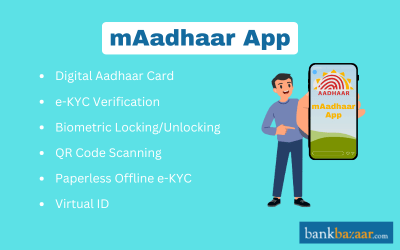
How Does the mAadhaar App Operate?
Through this password-protected app, users may view their Aadhaar card and enjoy several services, such as:
- This application gives users access to all Aadhaar-based application forms
- With this software, users can lock their biometric information and utilize it, however they see fit
- People do not need to carry the physical document because it functions similarly to an actual Aadhaar card
- Users can share their KYC with service providers using this application.
Key Features of the mAadhaar App
Some of the main features of the mAadhaar App are mentioned below:
- You don't even need to have the actual paper with you to manage or present your Aadhaar as identification
- Make appointments at the closest center to receive Aadhaar services
- Up to five family members' Aadhaar profiles can be managed from a single smartphone
- After completing a data update request, you can also update your Aadhaar profile with new information
- After completing a mAadhaar update successfully, you can retrieve the updated date of your Aadhaar profile using the app's Aadhaar sync feature
- It enables you to safely communicate QR codes or paperless eKYC with service providers
- To improve security and unlock your Aadhaar number whenever needed, use the mAadhaar biometric unlock feature
- You can replace your Aadhaar number for services by creating a virtual ID (VID) using the mAadhaar app. Those who have locked their Aadhaar or would rather not disclose it will find it especially helpful.
How to the Download the mAadhaar App
Follow the below-mentioned procedure to complete the download process
Download mAadhaar for Android Devices
- Visit the Play Store
- Look for the mAadhaar application
- Select Download
- After it has been downloaded, open it and grant all app-based permissions
- Choose your preferred language
- Next, input the cellphone number that is linked to your Aadhaar
- An OTP will be sent to you
- Once the OTP has been verified, the application will be operational.
Download mAadhaar on iOS Devices
- Visit the App Store
- Look for the mAadhaar application
- Select Download
- After it has been downloaded, open it and grant all app-based permissions
- Choose your preferred language
- Next, input the cellphone number that is linked to your Aadhaar
- An OTP will be sent to you
- Once the OTP has been verified, the application will be operational.
How to Add a Profile in the mAadhaar App?
Follow the steps below to add your profile on the mAadhar app:
Step 1 - Start by opening the application
Step 2 - Enter the password you came up with
Step 3 - There will be three dots in the upper right corner of the page. On them, click
Step 4 - Select Add Profile
Step 5 - Next, either scan the QR code or enter your Aadhaar number
Step 6 - Select Next
Step 7 - Your registered cellphone number will receive an OTP
Step 8 - The creation of your profile is finished once the OTP has been validated.
How to View a Profile in the mAadhaar App?
Give below is the process that must be followed to view your profile on the mAadhaar app:
Step 1 - Open the mAadhaar app and complete the login procedure.
Step 2 - Choose ‘My Profile’ or ‘My Aadhaar’.
Step 3 - Enter "PIN"
Step 4 - Now you can see details such as the Aadhaar number, address, gender, and name on App.
Step 5 - You can check if all details mentioned on the profile are correct. Certain changes can be updated on this page as well.
How to Connect Aadhaar to the mAadhaar Application
Users are required to link their Aadhaar and mAadhaar accounts after creating their profiles. Both iOS and Android users go through the identical procedure. To link your Aadhaar to your mAadhaar account, follow the instructions listed below:
- Launch the application and input the password
- Choose Register My Aadhaar
- Make a password
- Enter the Captcha and your Aadhaar number
- The registered mobile number will then receive an OTP
- You can access your Aadhaar card after confirming the OTP.
How to Delete a Profile in the mAadhaar App?
It is easy to delete your profile from mAadhaar. Given below is the process that can guide you in deleting your profile with ease:
Step 1 - Open the mAadhaar app on your smartphone.
Step 2 - Open the profile page.
Step 3 - Choose the three-dots icon that is present on the right-corner (top).
Step 4 - Choose ‘Delete Profile’.
Step 5 - Enter the password.
Step 6 - Select a reason on why you would like to delete the profile.
Step 7 - Choose ‘Yes’. The profile will be deleted.
How to Register and Login to the mAaadhar App
Let us look at how you can add or register your profile in the mAadhaar app. To successfully log in to your mAadhaar account, follow these steps:
- After installing the mAadhaar app, open it on your phone
- Select Register my Aadhaar now
- Make and verify a four-digit password
- Click Request OTP after entering your Aadhaar number and captcha code
- Click Verify after entering the OTP
- Your Aadhaar profile has now been successfully added to the mAadhaar app. You may add up to five Aadhaar profiles to your mAadhaar app in accordance with UIDAI regulations.
How to Reset the Password in the mAadhaar App
The procedure to reset the password is mentioned below:
Step 1 - Open the mAadhaar app on your smartphone.
Step 2 - Click on more (which is present in bottom right side corner)
Step 3 - Click on "Settings"
Step 4 - Choose ‘Rest Password’.
Step 5 - An OTP will be sent to the registered mobile number.
Step 6 - Once the verification process has been completed, the password can be reset
Compatibility of the mAadhaar app
The following requirements must be met to use the mAadhaar mobile app:
- A smartphone running iOS 13 or later or Android OS Version 5.0
- A cell phone number connected to your Aadhaar
- A reliable internet connection
Benefits of using the mAadhaar app
Some of the main benefits and features of the mAadhaar app are mentioned below:
- Safe Data Sharing: This app lowers the possibility of data breaches by enabling you to securely exchange Aadhaar details via QR code
- Biometric Security Control: For further security, you can lock or unlock your Aadhaar biometrics as needed
- Fast e-KYC Sharing: You can provide service companies an email or message with your e-KYC details right away
- TOTP (Time-based One-Time Password) is an alternative to OTP if you are experiencing problems getting Aadhaar OTPs on your mobile device
- Convenience: Since you can access all Aadhaar-based services straight from the mAadhaar app, you don't always need to carry your physical Aadhaar card.
Things to Remember While Using mAadhaar
When using the mAadhaar mobile app, there are a few things you need to be aware of:
- Your cell number needs to be connected to your Aadhaar card to utilize the majority of the mAadhaar app
- Only iOS 13 or later and Android OS Version 5.0 are compatible with this software. Go to About Device in your phone settings to see if your device is compatible
- You must pay a little price when using the mAadhaar app, which is comparable to the cost of buying a reprint or an Aadhaar PVC card
- Because the mAadhaar app automatically scans OTPs (One-Time Passwords), users must grant SMS permissions. This is due to UIDAI's decision to improve security by disabling OTP manual entry
- The easiest approach to manage and verify your identification is with the mAadhaar app. All your Aadhaar information, including your cellphone number, biometric information, and photo, is stored by the app. It's a fantastic substitute for carrying actual documents, which are susceptible to loss or damage
- You need to consider several factors, including the OS version of your smartphone and whether you wish to grant SMS access. Additionally, some services, including purchasing Aadhaar copies or altering demographic information, are subject to costs. Even if the mAadhaar login password protects the app, make sure to disclose your Aadhaar information appropriately.
Disclaimer
FAQs on mAadhaar App
- What will happen if you don't register your mobile number with Aadhaar?
If your mobile number is not registered with Aadhaar, you can install the mAadhaar app but won’t be able to use its personalised services. OTP-based verification requires the same number linked to your Aadhaar.
- What happens if you logout from the page suddenly during the mAadhaar linking process?
If you logout during the mAadhaar linking procedure, the entire linking procedure must be repeated.
- Can I lock/unlock my biometric data via mAadhaar?
Yes, you can enable or disable biometric authentication locking as needed.
- How many Aadhaar profiles can be added to one mAadhaar app?
You can add up to five profiles on a single registered mobile number.
- What is a Virtual ID (VID) and how is it used in the mAadhaar app?
The mAadhaar app can generate a 16‑digit VID which you can use instead of your Aadhaar number for secure identity services.
- Is mAadhaar accepted as valid ID offline (e.g., airports)?
Yes, many official entities accept the digital mAadhaar profile and QR code as valid identity proof in India.
- Can I update my address through the mAadhaar app?
Yes, the mAadhaar app allows for address update requests and tracking their status.

Disclaimer
Credit Card:
Credit Score:
Personal Loan:
Home Loan:
Fixed Deposit:


Copyright © 2026 BankBazaar.com.